
Quality QR is one of the best tools for creating Instagram QR codes because it gives you full design control, scan tracking, and works with any QR scanner. Instagram's built-in QR code feature is limited to profiles and requires the Instagram app to scan. This tutorial shows you how to create a better Instagram QR code with Quality QR in under a minute.
Why Quality QR Instead of Instagram's Built-In QR Code
Instagram offers a native QR code in the app, but it has significant limitations:
| Feature | Instagram Nametag | Quality QR |
|---|---|---|
| Works with any scanner | No (Instagram app only) | Yes |
| Link to posts/Reels | No (profile only) | Yes |
| Custom colors and logo | Limited | Full customization |
| Scan analytics | None | Total scans, unique users, timing |
| Download as SVG | No | Yes |
| Change destination later | No | Yes (dynamic codes) |
If you want analytics, custom branding, or need to link to anything besides your profile, Quality QR is the better option.
Step 1: Copy Your Instagram URL
Find the URL you want to link to. Here are the formats for each content type:
- Profile:
https://www.instagram.com/yourhandle - Post: Open the post, tap the three dots, tap "Link," and copy
- Reel: Open the Reel, tap Share, tap "Copy Link"
- Story Highlight:
https://www.instagram.com/stories/highlights/[id]/
Step 2: Create Your QR Code in Quality QR
- Go to Quality QR and sign up free (no credit card needed)
- Click "Create QR Code" and select the URL type
- Paste your Instagram URL into the destination field
- Choose "Dynamic" so you can track scans and change the link later
Quality QR validates the URL immediately and shows a preview of your code.
Step 3: Design Your Instagram-Branded QR Code
Make your QR code instantly recognizable as Instagram-related:
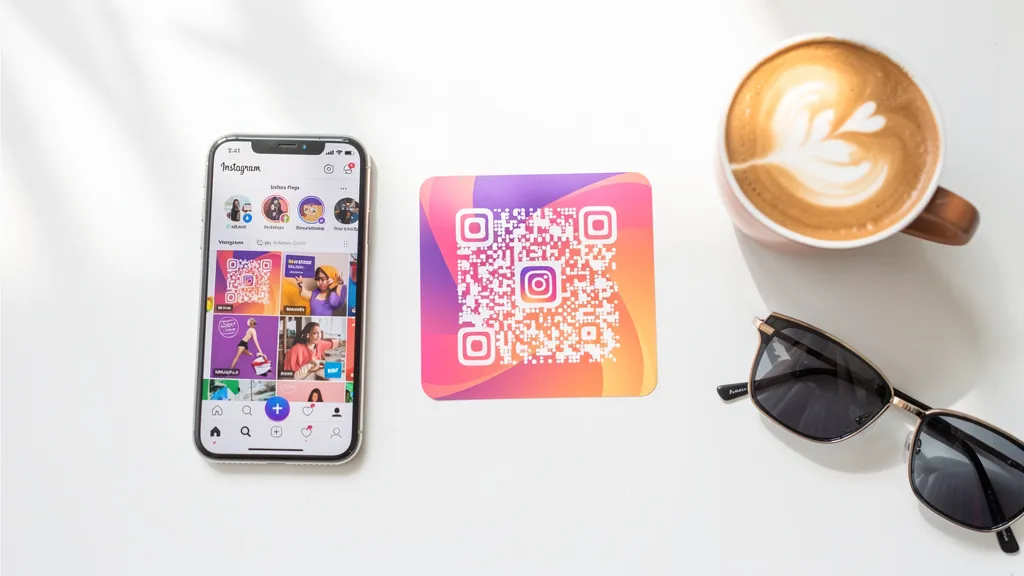
Use Instagram's brand colors:
- Purple: #833AB4
- Pink: #E1306C
- Orange: #F77737
Set your QR code's foreground to one of these colors, or use a gradient effect by choosing complementary tones (gradients are on Pro and Business). Quality QR's color picker lets you enter exact hex values.
Add the Instagram logo (Pro and Business): Upload the Instagram icon as your QR code's center logo. Keep it under 30% of the code area so scanning stays reliable. Quality QR shows you the safe size in the preview.
Step 4: Download and Deploy
Quality QR exports in two formats, both free with no watermarks:
- PNG: Best for social media posts, flyers, and digital materials
- SVG: Best for business cards, large prints, and professional design work
Where to use your Instagram QR code:
- Business cards (great for networking events)
- Restaurant table tents ("Follow us for specials")
- Product packaging ("See it styled on Instagram")
- Event booths and signage
- Flyers and posters
Step 5: Track Instagram Engagement with Quality QR Analytics
Quality QR's dashboard shows you scan data in real time:
- Total scans to measure overall interest
- Unique users to count individual people
- Scan timing to see when people scan (useful for aligning with posting schedules; hourly and day-of-week patterns on Business)
- Device types to understand your audience
Combine Quality QR scan data with Instagram Insights to see the full picture: how many scans lead to profile visits, follows, and engagement.
Best Instagram QR Code Formats for Business Cards
Business cards are one of the most popular uses for Instagram QR codes. Here is what works best:
Size: 1 to 1.25 inches on a standard business card. This leaves room for your name, title, and a call-to-action like "Follow me on Instagram."
Format: Download as PNG from Quality QR at 1024x1024 pixels for excellent quality at business card size. If your designer needs a vector file, use SVG export instead.
Design: On Pro and Business, use Instagram's gradient colors on the QR code and add the Instagram icon as the center logo. This makes the purpose immediately clear without needing extra text.
Placement: Back of the card or lower-right of the front. Pair with a short CTA, not just a bare code.
Quality QR vs Instagram Nametag: Which Should You Use?
Use Instagram's built-in QR if you only need a quick way to share your profile with someone who already has Instagram open on their phone.
Use Quality QR for everything else: business cards, printed materials, marketing campaigns, linking to specific posts or Reels, tracking scan rates, and when you need the code to work with any phone camera. Quality QR is also the better choice if you want to change the destination later, since Instagram's QR is locked to your profile.