
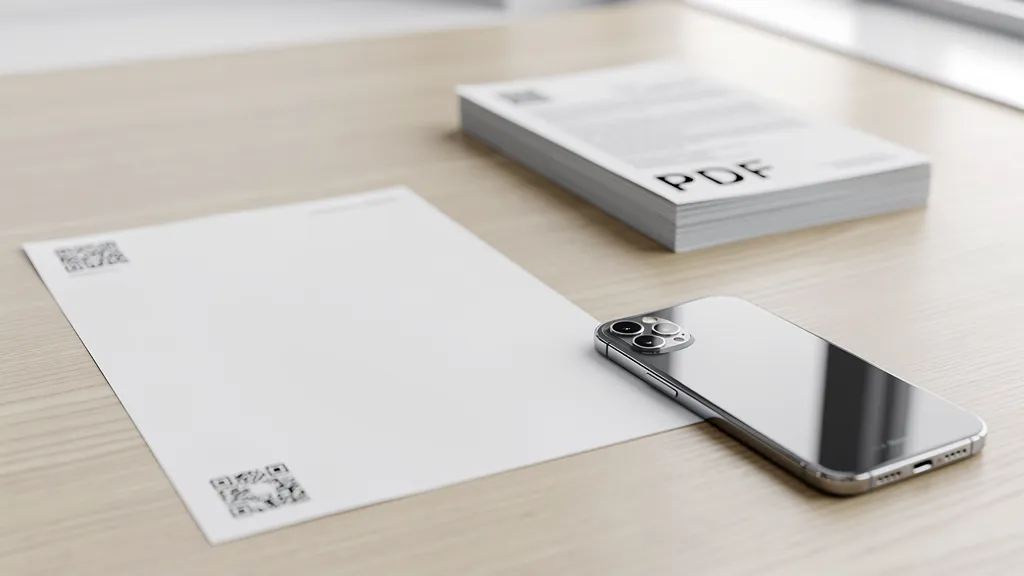
There are three ways to create a QR code for a PDF: (1) host the PDF online and link to it, (2) upload to cloud storage like Google Drive and share the link, or (3) use a dedicated PDF QR code service that hosts your file and provides analytics. Method 3 is recommended for businesses needing tracking and easy updates.
Method 1: Host and Link
Upload your PDF to your website or hosting service, then create a QR code linking to that URL.
Pros: Full control over hosting, no third-party dependency.
Cons: Requires web hosting, manual analytics setup, no easy file updates.
Steps:
- Upload PDF to your web server
- Get the direct URL to the PDF
- Create a QR code linking to that URL
- Test that the PDF opens correctly
Method 2: Cloud Storage Links
Upload to Google Drive, Dropbox, or OneDrive and share the public link.
Pros: Free, easy file updates, no hosting needed.
Cons: Less professional URLs, limited or no analytics, provider branding.
Steps for Google Drive:
- Upload PDF to Google Drive
- Right-click and select 'Share'
- Change access to 'Anyone with the link'
- Copy the link and create QR code
Method 3: Dedicated PDF QR Codes (Recommended)
Use a QR code service like Quality QR that hosts your PDF and tracks downloads.
Pros: Professional URLs, detailed analytics, easy file replacement, optimized viewing experience.
Cons: Requires QR code service account.
Steps with Quality QR:
- Go to the PDF QR code generator
- Upload your PDF file
- Customize the QR code design
- Download and deploy
Why Dedicated PDF QR Codes Are Better
Analytics: See how many people scanned and viewed your PDF, when, and from where.
Easy updates: Replace the PDF file without changing the QR code. Perfect for menus, catalogs, price lists, or any document that changes.
Optimized viewing: The PDF opens in a mobile-optimized viewer, not a raw file download.
Professional appearance: Clean URLs instead of long cloud storage links with random characters.
Use Cases for PDF QR Codes
- Restaurant menus and wine lists
- Product catalogs and spec sheets
- Event programs and schedules
- Real estate property flyers
- Training materials and manuals
- Resumes and portfolios
Create your PDF QR code free with Quality QR: upload, customize, and track downloads.