
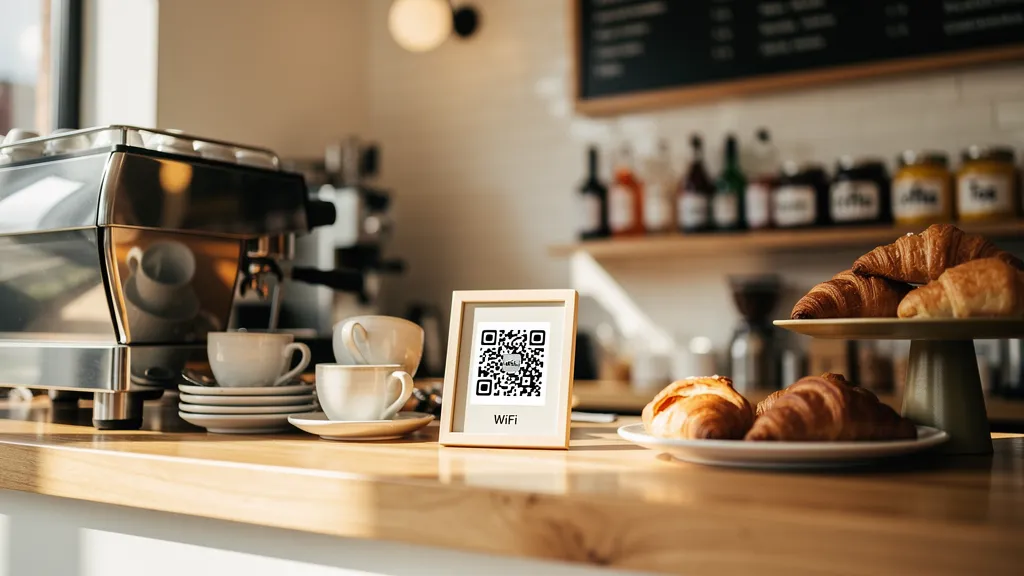
A WiFi QR code lets customers connect to your network instantly by scanning—no typing passwords required. To create one: enter your network name (SSID), password, and security type (usually WPA2) into a WiFi QR generator, test the code, then display it prominently at reception desks, table tents, or wall signs.
How WiFi QR Codes Work
A WiFi QR code contains your network name (SSID), password, and encryption type. When scanned, the phone automatically connects to the network—no typing required.
Creating Your WiFi QR Code
Step 1: Gather Your Network Info
- Network name (SSID): Exactly as it appears on devices
- Password: Case-sensitive
- Security type: Usually WPA/WPA2 for modern networks
Step 2: Generate the Code
Use Quality QR's WiFi QR code generator. Enter your network details and customize the design.
Step 3: Test Before Printing
Scan the code with your own phone to verify it connects correctly.
Step 4: Display Prominently
Place your WiFi QR code where customers can easily see and scan it.
Best Placement Ideas
- Reception desk or counter
- Table tents
- Wall signs near seating areas
- Menu inserts
- Welcome packets for hotels/rentals
Security Considerations
Guest Network
Consider creating a separate guest network for customer use. This keeps your business devices on a secure, private network.
Password Rotation
If you regularly change your WiFi password, use a dynamic QR code so you can update the credentials without reprinting.
Create your free WiFi QR code with Quality QR in under a minute.