
The short answer: A QR code usually fails to scan for one of two reasons. Either the phone cannot read the pattern (too little contrast, no blank margin around it, printed too small, a logo covering too much of it, glare, or damage), or the phone reads it fine but the link behind it no longer works (a typo in the URL, a dead page, or a dynamic code whose provider has switched off the redirect). The fastest way to tell which: if your phone shows a link or popup when you point it at the code, the pattern is fine and the problem is the destination. If nothing appears at all, the problem is the pattern or the phone.
This guide walks through the 12 causes we see most often, in the order worth checking them, with a fix for each. If you are about to print, run through the checklist at the end first. A failed scan on a poster costs a reprint; a failed scan in the preview costs nothing.
Is it the phone or the code?
Before blaming the code, rule out the phone. Try a second phone, ideally one from a different maker (an iPhone and an Android phone read codes with different software). If the second phone scans it instantly, the code is fine and the first phone needs attention. If neither phone reacts, the problem is almost certainly in the code itself or in how it was printed.
1. The camera is not set up to scan
Both major phone platforms scan QR codes from the built in camera, but each has a setting or shortcut that can be switched off. On iPhone, Apple's instructions are to open the Camera, hold the device so the code appears on screen and tap the link that shows up; you can also add a Scan Code button to Control Center. On Pixel phones, Google's help says to turn on Camera scan suggestions in the Camera app's settings, or to use the Scan QR code tile in Quick Settings. If the setting is off, the camera sees the code and simply does nothing.
Fix: check the camera's scan setting, or use the dedicated scanner shortcut. You do not need a separate scanning app on a current iPhone or Pixel, and our generator vs scanner guide explains why third party scanner apps are rarely worth installing.
2. Dirty lens, poor light or a shaky hand
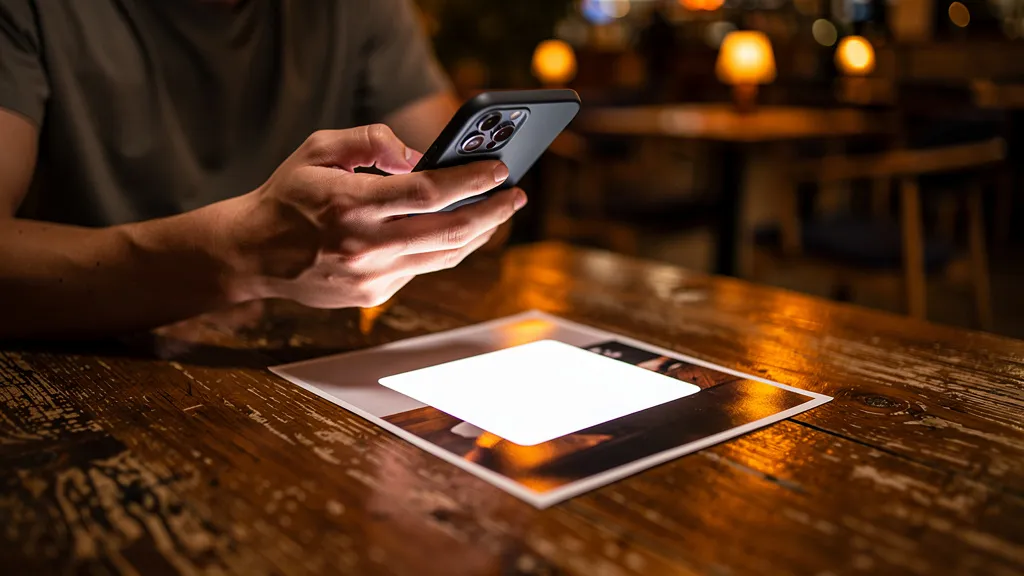
Google's own troubleshooting tips are blunt: hold the phone steady, scan in good light without shadows or glare, wipe the lens with a soft cloth, and move closer while keeping the whole code on screen. A greasy lens blurs the small squares together, and a code in a dim restaurant corner may never come into focus.
Fix: clean the lens, turn on the flashlight from Control Center or Quick Settings, and hold the phone parallel to the code rather than at a steep angle.
Why can't my phone read the pattern?
If two phones both ignore the code, the pattern is the problem. These are the design and print causes, from most to least common.
3. Not enough contrast
Scanners look for dark squares on a light background. Light gray on white, navy on black, or yellow on white can look fine to a person and be invisible to a camera. Quality QR's generator shows a scannability grade from A to F next to every preview, and it marks a contrast ratio under 3:1 as a critical problem and recommends at least 4.5:1.
Fix: use a dark foreground on a light background. Brand colors are fine as long as the contrast holds; our design best practices guide has safe color pairs.
4. Inverted colors
A light code on a dark background (white squares on black) is the mirror of what scanners expect. Some phones cope with it, many older ones do not, and the result depends on the scanning app. Our scannability check flags inverted colors as a warning for that reason.
Fix: keep the code dark on light. If your design must be dark, put the code on a light panel.
5. No quiet zone
The quiet zone is the blank margin around the code. It tells the scanner where the code starts and stops. Denso Wave, the company that invented the QR code, says a QR code needs a margin four modules wide on all sides, where one module is one of the small squares in the pattern. Designers often crop the margin to save space or place the code tight against a photo, a border or text, and the scanner can no longer find the edges.
Fix: leave a clear border of at least four modules on every side. When you place a downloaded code in a layout, do not trim the white edge that comes with it.
6. Printed too small for the scanning distance
A code on a business card is scanned from 20 centimeters away; a code on a shop window may be scanned from two meters. The further away the scanner, the larger each module has to be. A long URL makes this worse, because more data means more, smaller modules in the same space.
Fix: size the code for the distance. Our print size guide gives minimum sizes by use, and a dynamic code keeps the pattern simple because it encodes a short link instead of your full URL.
7. The logo covers too much
QR codes carry error correction: spare data that lets a scanner rebuild parts of the code that are missing or covered. Denso Wave lists four levels (L, M, Q and H); level M can restore about 15% of the code and level Q about 25%, with H the highest. A logo in the middle uses up that spare capacity. Cover too much, or cover it at a low level, and the code fails.
Fix: keep the logo under about 30% of the code's area, and raise error correction to Q or H when you add one. Quality QR's scannability check warns when a logo covers more than 20% of the code, marks anything over 30% as critical, and asks for level Q or H when a large logo meets level L or M. Logo upload is part of the Pro plan; see pricing for what each plan includes.
8. Gradients, fancy patterns and reflective surfaces
Gradients make one end of the code lighter than the other, which lowers contrast where it fades. Dotted or rounded module patterns are usually fine but need a slightly larger print size. Glossy laminate, metal, glass and curved bottles add glare and distortion that a flat paper test never shows.
Fix: test the finished design on the real material, in the real light. If it fails, switch to solid colors, a square pattern or a matte finish.
9. Damage, folds and low resolution
A crease through the code, a scratched sticker or a blurry upscaled image can break enough modules that error correction cannot recover them. Upscaling a small PNG is a common cause: the edges of the squares turn soft and the printer smears them further.
Fix: export a vector file for print. An SVG stays sharp at any size, which our PNG vs SVG guide explains in detail. Replace damaged stickers rather than taping over them.
The code scans but nothing loads: what now?
If the phone shows a link but the page will not open, the pattern is fine and the destination is the problem.
10. A typo or a broken destination
A missing letter in the URL, an old page that was moved, or a link that only works when you are signed in will all scan perfectly and then fail. The same goes for a file share link that was set to private after the code was printed.
Fix: open the exact link from the code on a phone that is not signed in to anything. If the link is wrong and the code is static, you need a new code, because a static code stores the URL in the pattern itself. If the code is dynamic, change the destination in your dashboard and the printed code starts working again. Our dynamic vs static guide covers the difference.
11. The provider switched off the redirect
A dynamic code points to the provider's short link, and the provider forwards each scan to your page. If the provider ends a free trial, deletes codes after a downgrade, caps free scans or shuts down, the printed code stops working even though nothing about it has changed. This is one of the most common complaints about QR code generators, and we wrote about it in who owns your QR code.
Fix: log in to the provider and check the code's status. Quality QR's free plan includes 1 dynamic code and 5 static codes, with unlimited scans, and codes do not expire on any plan, including after a downgrade. Our never expires post compares what other providers do.
12. A rule you set on purpose
Some codes stop by design. Quality QR's Pro plan can give a code a scan limit (useful for single use vouchers), and the Business plan can activate and expire codes on a schedule. A code that has reached its limit or passed its end date behaves exactly like a broken one to the person scanning it.
Fix: check the code's scan limit and schedule in your dashboard before assuming something is wrong. See the scan limits guide and the time scheduling guide.
How do I test a QR code before printing?
Five minutes of testing saves a print run. Before anything goes to the printer:
- Check the scannability grade in the preview and fix anything marked critical.
- Scan the code from the screen with an iPhone and an Android phone.
- Print one copy at the final size on the final material, or as close to it as you can.
- Scan that copy from the real distance, in the real light, at a slight angle.
- Open the destination on a phone that is not signed in, and check the page loads quickly on mobile data.
If the code is going on something expensive to reprint, use a dynamic code. Then a wrong link becomes a dashboard edit instead of a reprint. You can create a free QR code and run these tests without a credit card.
Sources
- Error correction feature, QRcode.com, Denso Wave (checked 2026-10-22)
- Point for determining the code area, QRcode.com, Denso Wave (checked 2026-10-22)
- Scan a QR code with your iPhone or iPad, Apple Support (checked 2026-10-22)
- Scan QR codes with your Pixel phone, Pixel Phone Help (checked 2026-10-22)